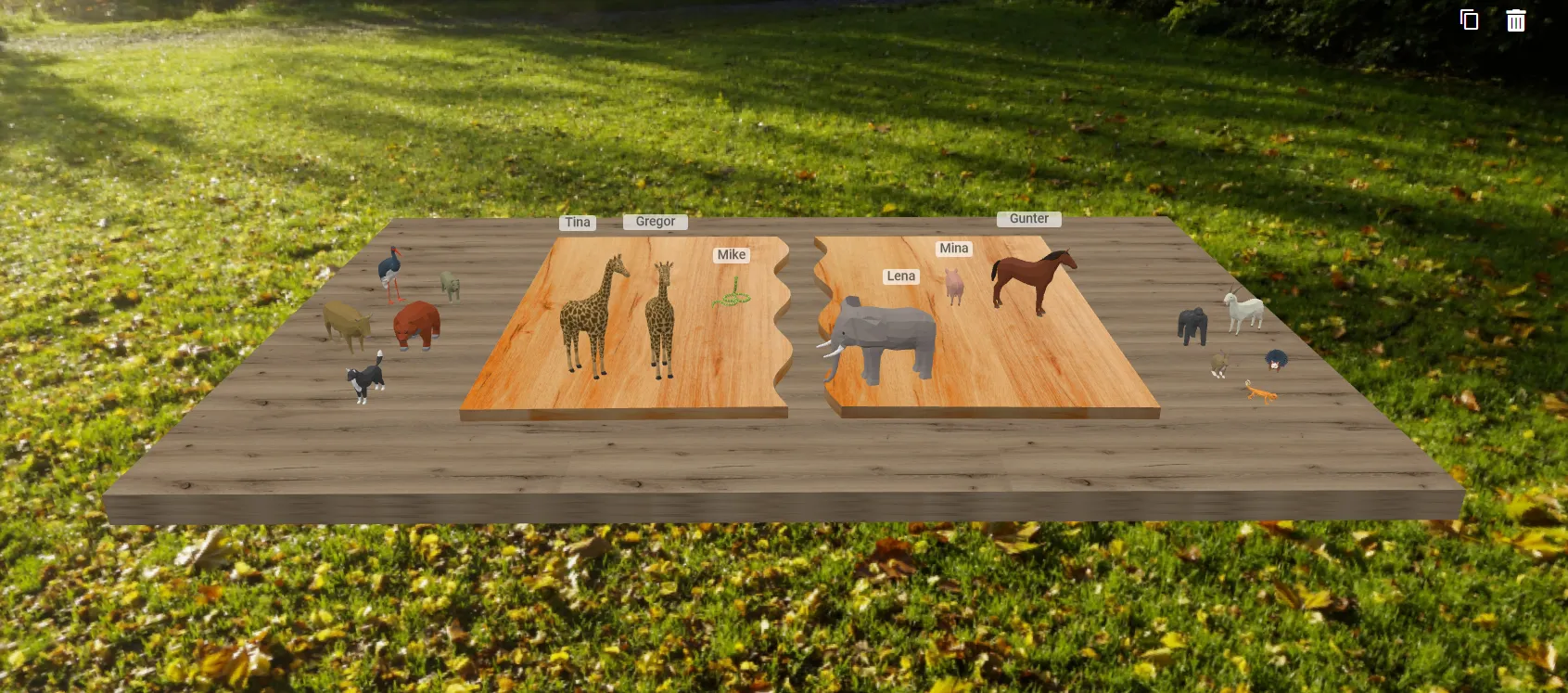
Slowly but surely, the birds are chirping in the trees again. Fitting the season, things are getting wild in coachingspace too! Since we now work with several child and youth welfare organizations, and some of our team members also come from youth work, the call for "animal life" grew ever louder, and not only from outside. And now the time has come: several animals have left forest, desert and farm and moved into coachingspace. Let us welcome them with this article, along with further new functions and improvements!
Selecting the animals…
To get started with the animals right away, log in to your user account. You don't have an account yet? No problem: via the same link, you can also log in below without a user account (the constellation board will then not be saved, however). After logging in, click "Constellation board" in the menu bar on the left and then "New" at the top right to create a new constellation board. The following selection menu appears:
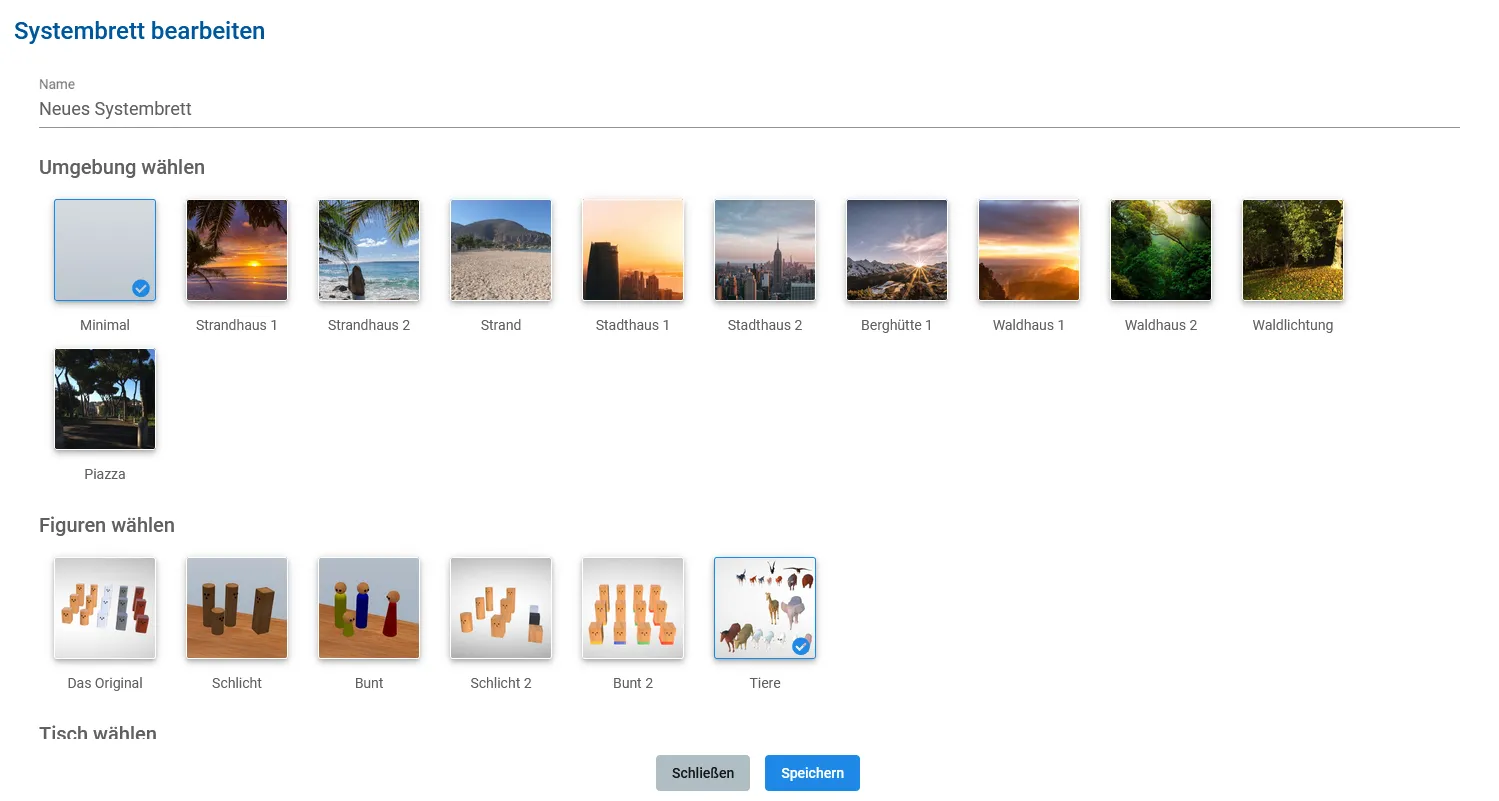
When creating a new constellation board, the animals can be selected under "Figures" (see bottom right)
There you select the animals as the figure set. As always, you can give the board a name and choose an environment and board shape. Then click "Save". Start the newly created board either by clicking its name in the list or the blue "Play" symbol next to it.
…and working with them
Just like the wooden figures, the animals can be selected, moved, rotated and labeled. But the animals themselves are not the only new thing. On all constellation boards, our diligent developers have built in frequently requested new functions. A little quiz for our power users: which of the icons, and thus functions, are new here?
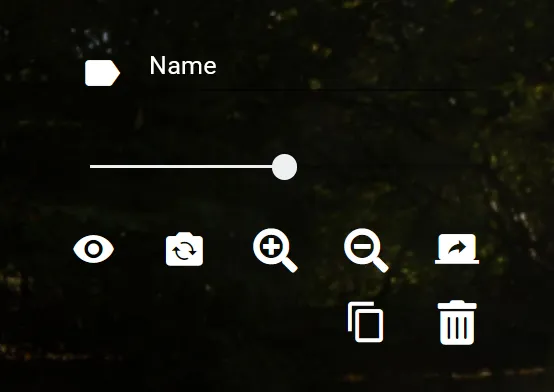
The new features of the constellation board
The answers: (1) Clicking the small label to the left of the name field now lets you hide and show the name tags above the figures (and of course the animals). (2) To the right of the magnifying glass, the "Share view" function has arrived. It allows both coach and clients to share their own current view of the arranged system. Simply click the monitor with the small arrow, and the other participants see exactly the same perspective on the constellation board as the person who shared theirs. (3) Duplicating and (4) deleting are two further new functions. Select a figure (say, the giraffe), click the duplicate symbol, and two giraffes stand on the board right away. Wild! Deleting works the same way via the wastebasket symbol. But careful: if the last available figure of its kind is deleted (for example the last giraffe), this cannot currently be undone. So handle it with care. (5) A final new constellation board function is deselecting a chosen figure. Simply click the figure again to remove the selection.
The animals are of course excellent not only for working with children and adolescents. Behind the scenes, for example, we are already planning the first workshops on animal-assisted coaching, which we want to offer soon through our partner Qualifire.Online. So stay curious!
Smaller improvements
Fitting the animal theme, a kingfisher now adorns the start page and the app background, and for several days all our servers have been running entirely on green electricity. We have also cut the loading time of the consulting room roughly in half, and if internet problems occur, the integrated video tool reconnects automatically.
These improvements too are the result of the many responses from our testers. As always, many thanks for that, and have fun coaching and consulting in coachingspace.