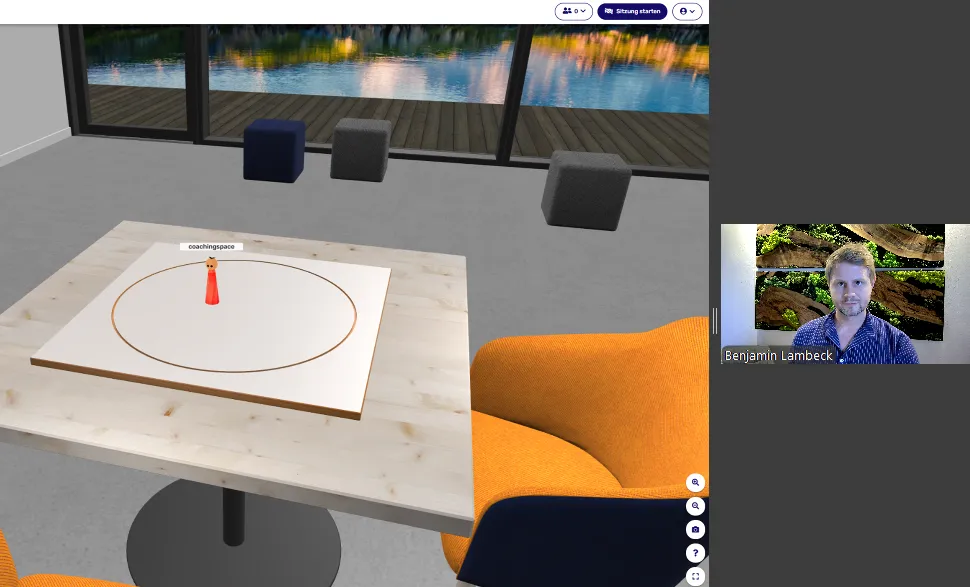
In online counseling and coaching, it is crucial that the contact between coach and client is not disturbed by technical hurdles. Many know the situation: you want to work together in coachingspace, say on the constellation board or whiteboard, while keeping the video conference stable.
If a link is additionally shared in the chat, problems often follow: clients lose sight of Zoom or Teams, accidentally click the wrong window, and the connection becomes shaky.
A simple solution: hand over control of your screen directly in Zoom or Teams. Clients can then work independently in coachingspace while staying fully present in the video conference.
Zoom: enabling and using remote control
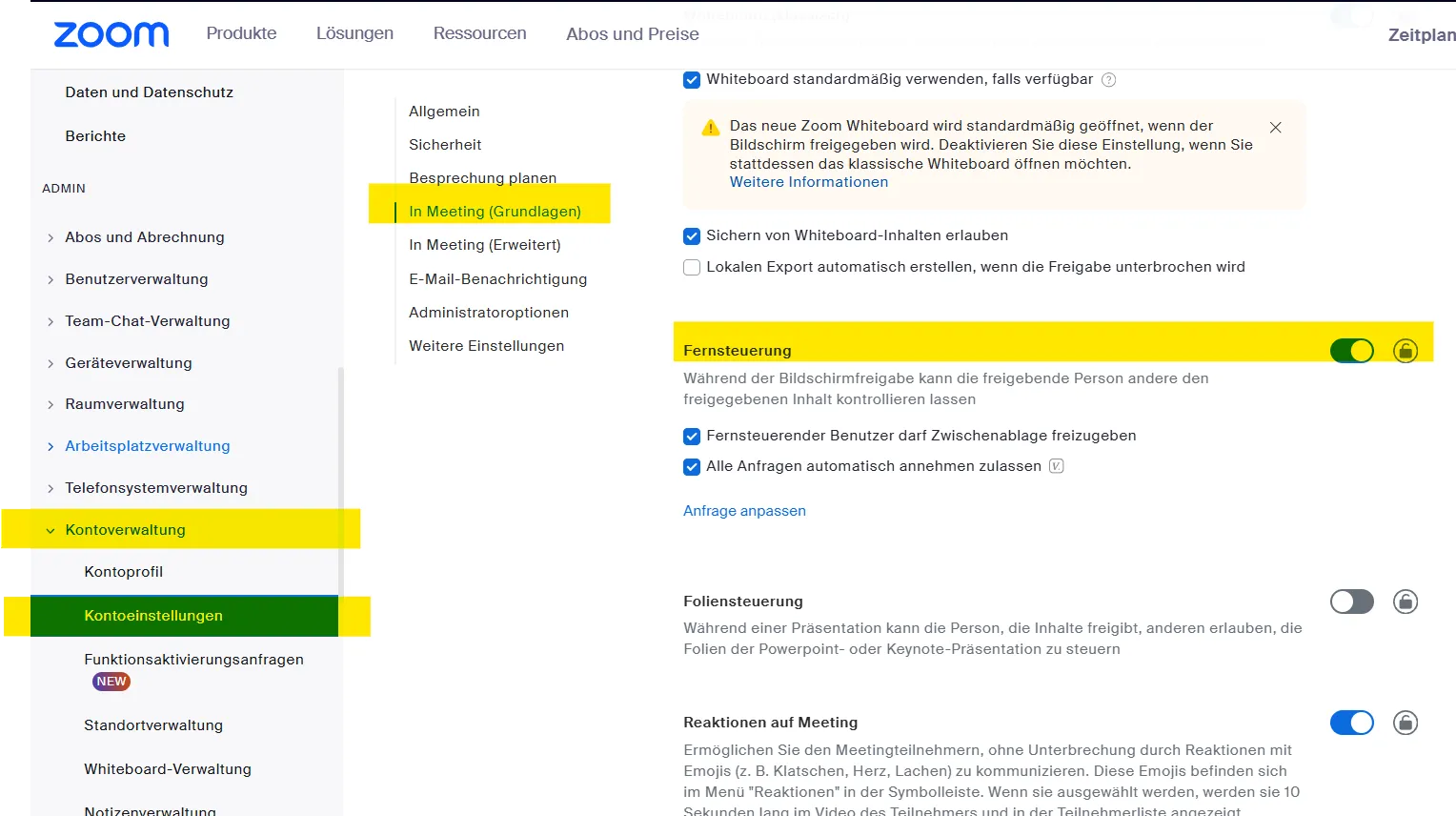
For clients to operate the mouse on your shared screen, the feature must be enabled in your Zoom settings.
Step 1: enable the setting
Log in to your Zoom account in the browser.
Go to Settings.
Select the In Meeting (Basic) tab.
Find Remote control and set the switch to on.
Step 2: in the meeting
Open the tool you want in coachingspace (for example the constellation board, whiteboard or journal).
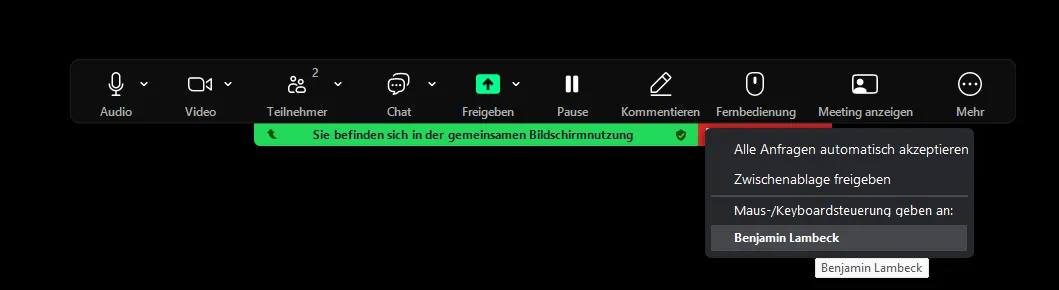
Share your screen in Zoom.
While sharing, click Remote control in the Zoom toolbar.
Select the client you want to hand control to.
👉 The client receives a notification and can then work with the mouse on your shared screen: moving figures, entering text or shifting cards.
Microsoft Teams: giving control
Microsoft Teams also has a comparable feature, called Give control (Maussteuerung übertragen in the German interface).
Step 1: share your screen
Start your Teams session and select the screen or window with coachingspace.
Step 2: give control
Move your mouse to the top edge of the screen, where the control bar appears.
Click Give control (Steuerung übertragen in the German interface).
Select the client who should take over.
The client can now work with mouse and keyboard in the shared window.
Step 3: take back control
Via the same bar, you can click Take back control at any time.
Advantages for coaching with coachingspace
Working with remote control in Zoom or Teams offers several central advantages:
Clients shape the process actively
They move figures, write in the journal or shift cards, self-directed and intuitively.The same view for both
Coach and client always see the same screen. That creates clarity and reduces misunderstandings.Stable connection, undisturbed relationship
Clients stay in the video conference throughout. No extra link has to be sent, no window switching distracts, and the attention stays with the process and the relationship.
Practical example: the constellation board
The benefit becomes especially clear with the constellation board:
The client can set up figures themselves, change lines of sight or try out perspectives.
As a coach, you accompany the steps of perception without having to intervene technically.
The experience comes very close to working with a physical board in the room, despite the physical distance.
If remote control seems too complicated, there is a simpler path: the shared screen without remote control. The client cannot move figures themselves, but the coach places them on request. Not ideal, but workable in many cases.
A third and final option is to create a method link in coachingspace and share it in the Zoom chat. Clients can then work independently in coachingspace right away. The risk here: when opening the link, the Zoom window slips into the background and the visual connection to the coach is lost. This can be mitigated by guiding the client to arrange the Zoom window and the browser window with coachingspace side by side.
Conclusion
Combining coachingspace with the remote control features of Zoom and Teams makes sessions technically simple and close to the process.
Clients stay involved, the connection stays stable, and the focus remains on what matters: the shared coaching process.